

Team Departments
Team Departments provide an extra layer of organization within your multi-agent chat environment, enabling you to efficiently manage your team's workflow.
With Departments, you can group team members according to their specialties or functions and control how incoming chats are routed—either to a whole department or directly to an individual team member.
By using this feature, chats can be assigned in the following scenarios:
- Department
- A specific user within a Department
- Directly to a team member that is not within a department
Note: Departments complement the team roles (Administrator, Supervisor, Agent) described in our Team Roles article. The default permissions associated with each role remain unchanged when working within departments.
Overview
- Department Limits: You can create up to 10 departments per WhatsApp number.
- Team Member Limits: Each department can include up to 30 team members.
- Chat Assignment:
- Department Assignment: Routes incoming chats to the entire department, allowing any available agent to take the conversation.
- Individual Assignment: Directly assigns a chat to a specific team member for a more targeted approach.
- Automatic chat assignment: A chat in a department is only assigned automatically to members of that department.
- API support: Automate Departments management and chats assingments using the API.
- Best practices and Tips
Managing Departments
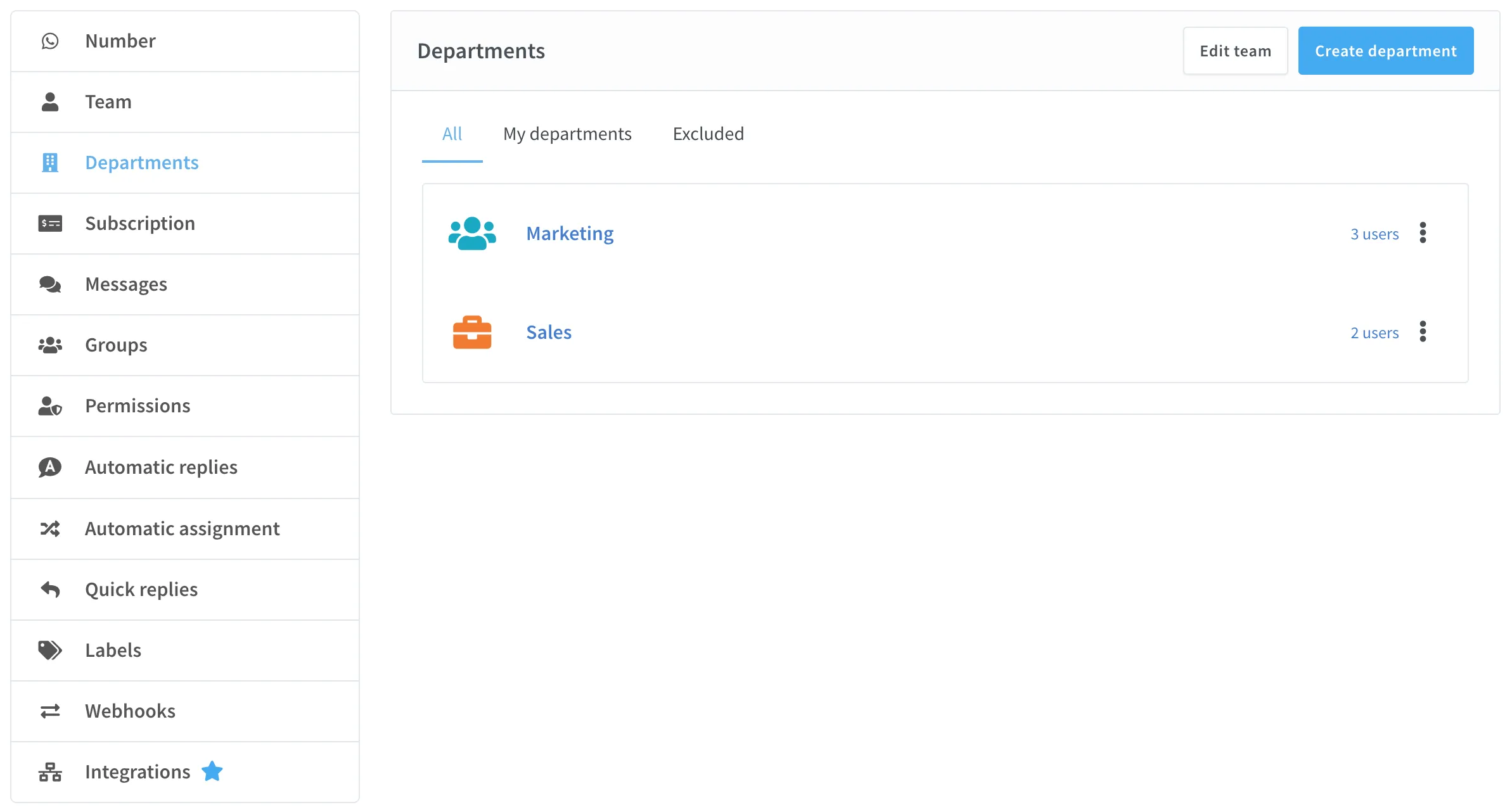
Creating a Department
- Access the Departments Section:
- Log in to your console and navigate to the Departments area.
- Initiate Department Creation:
- Click on the Create Department button.
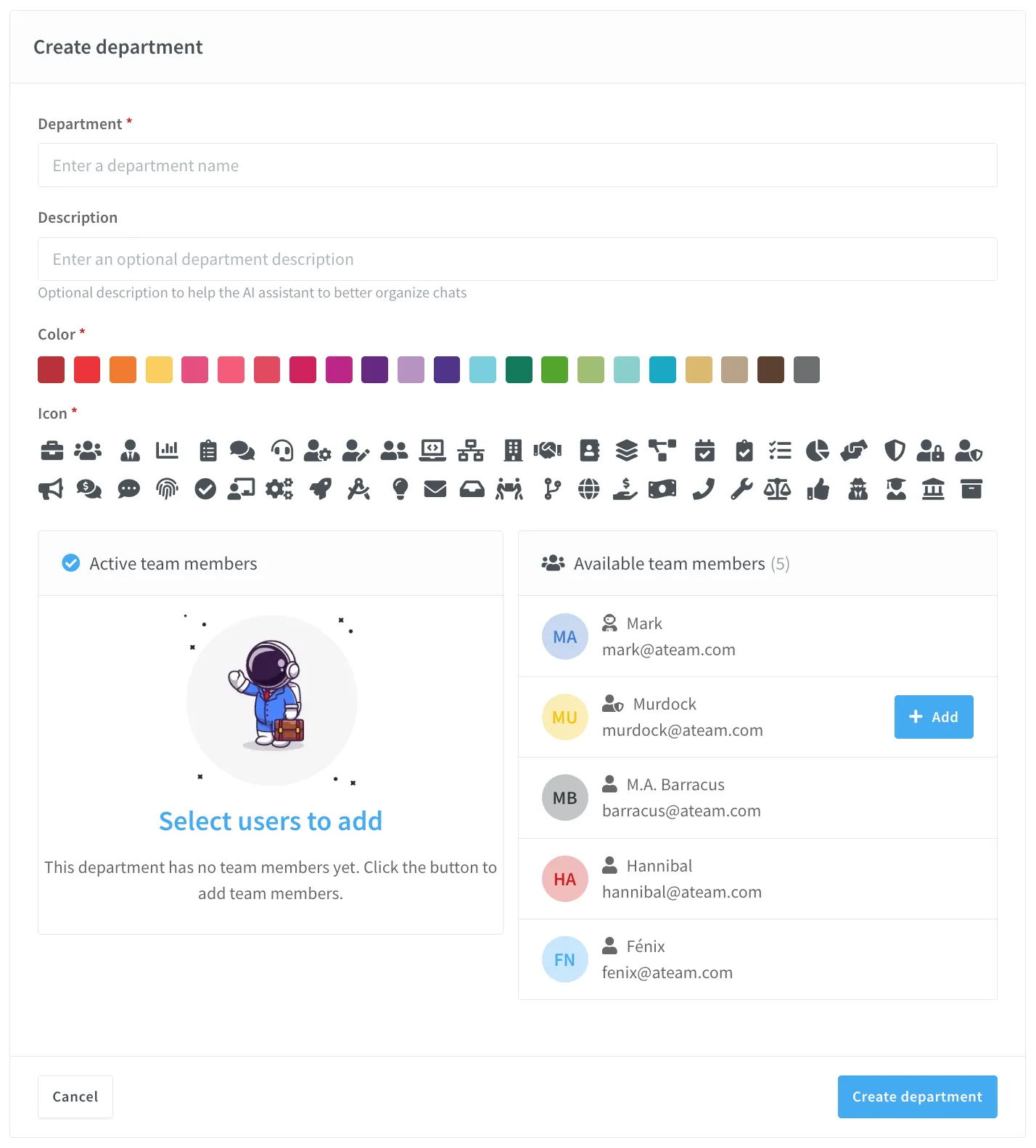
- Configure Department Details:
- Enter a unique name for the department (e.g., "Sales Support", "Technical Assistance").
- Optionally, provide a brief description of the department’s role.
- Confirm Creation:
- Save your new department. Remember, you can have a maximum of 3 or 10 departments per WhatsApp number, depending on your subscription plan.
Adding Team Members
- Select Your Department:
- From the list of departments, choose the one you want to manage.
- Add Members:
- Click on the Add Member button.
- Select agents from your existing team roster to include in this department.
- Keep in mind that each department can have up to 30 team members.
Editing and Removing Departments
- Editing a Department:
- Click on the department you wish to modify.
- Use the Edit option to update the name, description, or team member list.
- Removing a Department:
- If a department is no longer required, select it and click Delete.
- Before deletion, ensure that any active chats are reassigned to another department or to an individual team member.
Chat Assignment Strategies
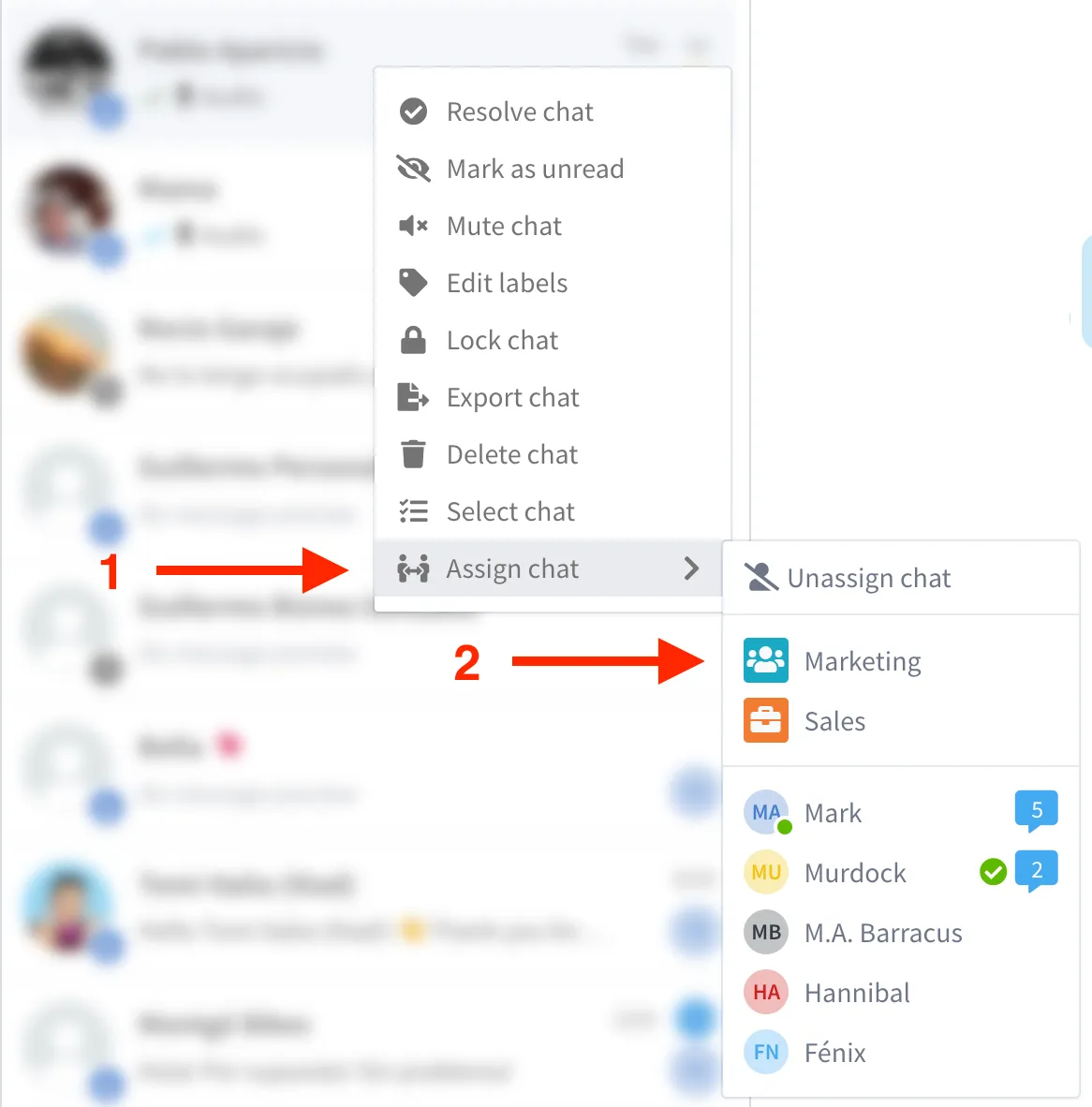
Assigning Chats to a Department
- Purpose: Ideal for teams that can collaboratively handle inquiries.
- Process:
- When a chat is assigned to a department, any agent within that department can claim and respond to the conversation.
- If the chat had an agent who is not in the department, that agent is removed from the chat. When you move several chats at once, their agent is always removed, even if they are in the department.
- With automatic chat assignment on, a chat left without an agent is assigned to an available member of the department with the customer's next message, unless the department is excluded.
- This method helps balance the workload among several team members.
Assigning Chats to an Individual
- Purpose: Useful when a chat requires specialized attention or accountability.
- Process:
- Directly assign the chat to a specific agent.
- This approach ensures that the conversation is managed by the designated individual.
Filtering chats by Department
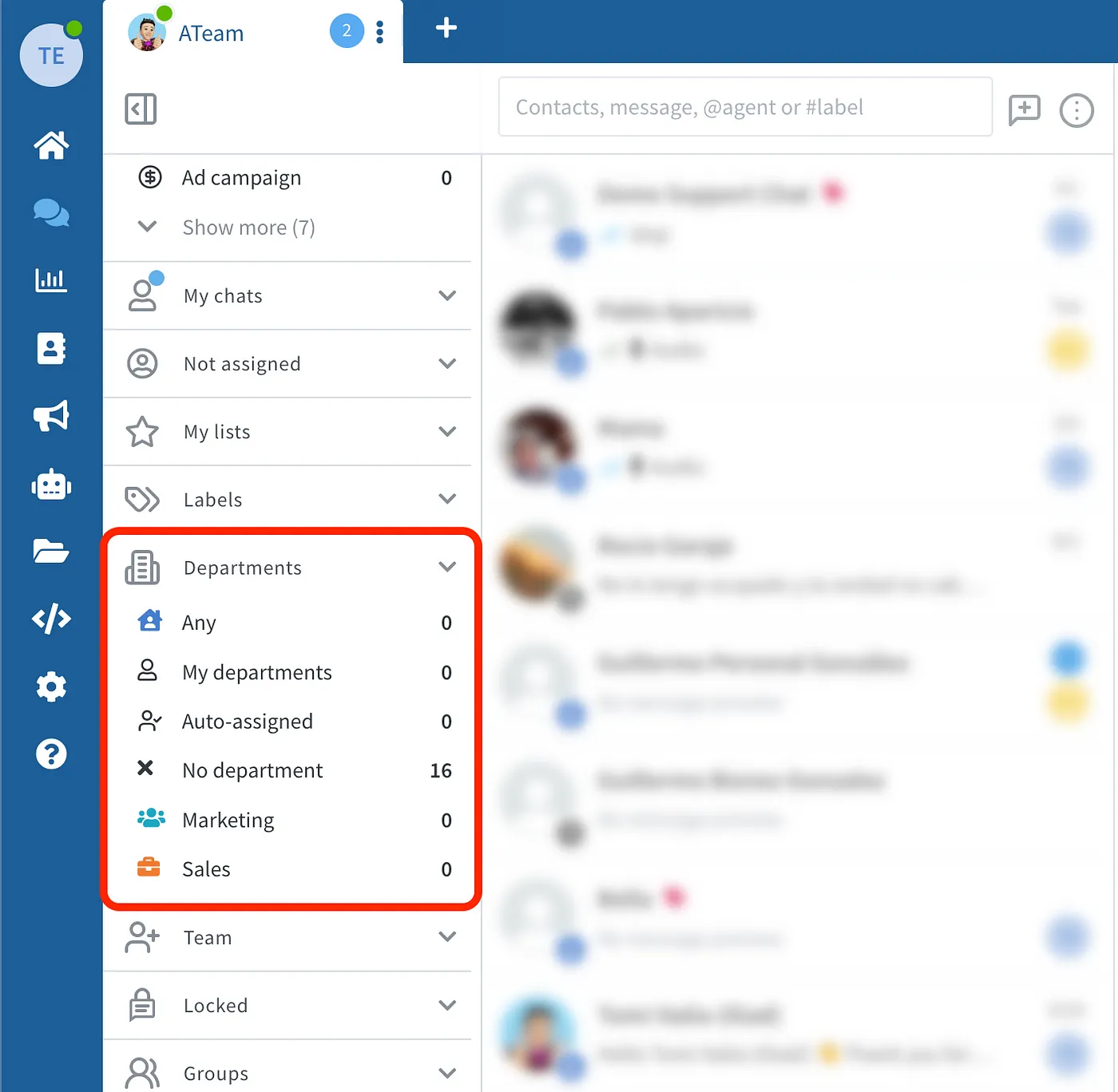
Now you can easily filter chats by Department from the chat filters panel:
Automatic chat assignment
Automatic chat assignment respects departments:
- A chat in a department is only assigned to members of that department, following the availability options you chose for automatic assignment.
- If none of the department's members is available, the chat stays unassigned in the department, where the Department filter finds it. It stays there until a member takes it, or until the customer writes again while a member is available: a member coming online does not pick it up on their own.
- A chat without a department, or whose department was deleted, is shared among the whole team, except anyone you excluded.
- Reassignment follows the same rule: a chat in a department is only moved to another available member of that department.
- You can exclude a department in the automatic assignment settings. Its members are then never assigned chats automatically, in any department, including people who join it later, and chats in that department wait for someone to take them.
- Excluding only decides who receives chats automatically. A chat a member of an excluded department takes by hand stays theirs while they are active in the console, and is only reassigned once they have been inactive for several minutes.
- When you create, edit or delete a department, automatic assignment picks up the change within a couple of minutes.
Learn more about how to use Automatic Chat Assignment here.
API support
You can leverage the API to automate departments management and chats assignments. Find more information in the API documentation:
- 📥 Assign chat to a department
- 📥 Assign chat to both department and agent
- 🏢 List departments
- 🏢 Create department
- 🏢 Update department
- 🏢 Delete department
Best Practices and Tips
- Structure Your Departments Effectively: Organize departments according to your business functions (e.g., Customer Support, Technical Support, Sales) to improve efficiency.
- Monitor Team Capacity: Regularly check that each department does not exceed the 30-member limit to maintain optimal performance.
- Align with Team Roles: Remember that department assignments work in tandem with team roles. For example, a Supervisor’s ability to manage chats remains the same whether they are in one department or another.
- Flexibility in Chat Routing: Use the ability to assign chats both to departments and individuals to best match the nature of each customer inquiry.
Additional Notes
- Integration with Permissions: The team roles (Administrator, Supervisor, Agent) govern what actions can be performed within departments. For detailed permissions related to chat functionalities, please refer to our Team Roles article and Permissions guide.
- Scalability: As your chat volume grows, the department structure helps ensure that chats are distributed evenly and handled by the most appropriate teams.
By leveraging Team Departments, you can further streamline your multi-agent chat operations and ensure that every customer interaction is managed efficiently. If you have any further questions or need additional assistance, please visit our Help Center.